Learning the focus system with boundKeyboard and focusId
In a real application, a screen may have several select lists, tables, input fields and more, and they all compete for keyboard events, ending in chaos. For example, we have select list A and select list B, and both use the up and down arrows to move the current selection. When we press the down arrow, both lists respond and move down — in complex scenes this is a mess and makes the experience worse. Take a look at the example below.
Suppose we have a component like this, which binds the up and down arrows internally to control itself. But here's the problem: suppose a screen needs two such components. Now the two sets of bindings conflict and cause chaos. That's why ink-cartridge provides a complete focus system to solve this: when multiple components or bindings exist at the same time and conflict with each other, where should the key event be routed?
function SelectInput(/**...*/) {
	const { boundKeyboard } = useKeyboard()

	useEffect(() => {
		const unBindDown = boundKeyboard(["down"], () => {/**...*/})
		const unBindUp = boundKeyboard(["up"], () => {/**...*/})

		return () => {
			unBindDown()
			unBindUp()
		}
	}, [boundKeyboard])

	return (
		/**...*/
	)
}
In this chapter, we'll learn the keyboard engine's focus system: the basic methods for controlling focus, the engine's automatic focus rotation, and the focusId option of boundKeyboard — as well as when focus is created and when it is unregistered.
Additionally, ink-cartridge supports multi-focus: default groups and named groups. If no group is specified, focus operations happen in the default group. This article doesn't cover multi-focus; it will be explained in detail in a later article.
Prerequisites
| Chapter | Why you need it |
|---|---|
| Basic Binding | The focus system solves several bindings competing for the same key |
Basic focus methods preview
focusSet(focusId, groupOrOptions?){void} Force activation. Immediately switches focus to the givenfocusId. If agroupis specified, switches within that group.focusNext(groupOrOptions?){void} Move forward. In the current or default group, moves focus to the next target in registration order (Tab behavior).focusPrev(groupOrOptions?){void} Move backward. In the current or default group, moves focus to the previous target in registration order (Shift+Tab behavior).focusCurrent(groupOrOptions?){FocusCurrentResult} Query the current focus. Returns thefocusIdcurrently holding focus and its group. Useful for debugging or reading state (does not trigger rendering).
What is focus, and what is a focus target
Focus is, simply put, the "microphone" of keyboard events. In a terminal — an environment with a single "input channel" — a screen often has many components fighting over keys, but at any moment only one target receives the event: it is routed to whoever currently "holds the microphone". Other targets are skipped by the engine even if they registered exactly the same keys. This is the answer to the question we raised at the start: "when multiple components or bindings exist at the same time and conflict with each other, where should the key event be routed?"
So what is a focus target (FocusTarget)? It's a named slot on the screen that focus can hit. Each focus target has a unique focusId and maintains its own set of bindings:
boundKeyboard(["up", "down"], handleUpDown, { focusId: "select-a" })This focusId: "select-a" tells the engine: this binding doesn't belong to the screen itself, but to the focus target named select-a. This way, each SelectInput's up/down bindings each get their own place and no longer tangle with each other.
But you might wonder: since a screen can have multiple focus targets, don't they respond to keys together? No. There's a core rule — each group only allows one active focus at a time.
Internally, every screen's keyboard layer maintains a "focus table" that records three things: which focus targets are registered, in what order they appear, and which one is currently active. Here "group" is the key concept: the default group, as well as the named groups we'll cover later, each allow only one active focus at a time. When you move focus from select-a to select-b, select-a immediately "steps aside" — the focus table always keeps only one of them.
When a key reaches the screen-stack stage, the engine first resolves the currently active focus and then only tries the bindings on that focus. A target that doesn't hold focus won't match even if it registered the same key as the one pressed. In other words, a focus target fully separates "who binds a key" from "who receives a key" — a binding merely "registers" the key into a target; whether it's received depends on whether that target is active.
Back to the example at the start — the root cause of the two SelectInputs conflicting is that their bindings were registered directly on the screen (without focusId), in an "always active" state, compared on every key press. Once each component is given its own focusId, their bindings each get their own place, and routing is entirely decided by focus.
Understanding the focus lifecycle
The creation of focus follows one core principle: it is not created when a component renders, but implicitly created when a binding is registered — lazy creation. The benefit is that focus registration stays simple, flexible and invisible; you don't even know it's happening.
When creation happens
When boundKeyboard or boundSequence is called with a focusId, the keyboard engine runs its creation logic. We won't cover the boundSequence sequence-key method here — only boundKeyboard.
boundKeyboard(["s"], () => doSomething(), { focusId: "submit-btn" })The engine checks whether a focus named submit-btn already exists in the current screen's default group. If it exists, the engine registers the binding directly into it; otherwise it creates a new one and registers the binding.
Auto-activation: the first focus needs no manual selection
The engine creates focus through "get or create": reuse an existing focus with the same name, or create a new one. And while creating a new focus, the engine does one more thing — if this is the first focus created on the current screen, the engine immediately makes it active, i.e. it automatically holds focus. This means when a screen has only one focus target, you never need to call focusSet manually: the moment the binding is registered, focus already belongs to it.
function SelectInput({ focusId }: { focusId: string }) {
    const { boundKeyboard } = useKeyboard()

    useEffect(() => {
        return boundKeyboard(["up", "down"], () => {/**...*/}, { focusId })
    }, [boundKeyboard, focusId])

    return (/**...*/)
}

// the first focusId registered on the screen automatically holds focus
<SelectInput focusId="select-a" />
<SelectInput focusId="select-b" />
When select-a is registered, it's the screen's first focus, so the engine activates it; when select-b is registered, the screen already has an active focus, so the engine won't switch — select-b quietly joins the focus order and waits for focusNext / focusPrev / focusSet to hand focus over.
Back to the opening scenario: once the two SelectInputs each hold their own focusId, key events are only routed to whoever currently holds focus — the other component registered the same up/down arrows, but since it doesn't hold focus, its bindings are simply skipped by the engine. The conflict is gone.
Unbinding a binding does not unregister focus
Here's an easy point to get confused: the focus lifecycle and the binding lifecycle are out of sync.
The unbind function returned by boundKeyboard only removes the corresponding binding from the focus — the focus itself remains, still occupying a spot in the focus order. In other words, even if all bindings on a focusId have been unbound, the engine won't reclaim it automatically.
This keeps the focus order deterministic: it's only affected by explicit operations like focusSet, focusNext, focusPrev, focusUnregister — never quietly changed by a binding being temporarily unbound.
When focus is unregistered
Focus is unregistered through only two sources: explicit unregistering and destroyed with the screen.
Explicit unregistering: focusUnregister
useKeyboard provides focusUnregister(focusId) to unregister a focus on purpose:
const { focusUnregister } = useKeyboard()

// Unregister the focus named select-b
focusUnregister("select-b")- If the unregistered focus happens to be the active one, the engine automatically hands focus to the first remaining focus in the group's registration order;
- If no focus remains in the group, the group's focus slot is cleared —
focusCurrent()then returnsnoFound, meaning no focus is active and no bindings respond to keys.
Destroyed with the screen: navigating away
Focus doesn't belong to a component itself; it lives on the current screen's keyboard layer. When a screen is removed from the navigation path (e.g. via skip, back, gotoScreen), the screen's entire keyboard layer — along with all its focus targets — is destroyed. So after leaving a screen, its focus state doesn't linger into the next screen.
Note: distinguish "component unmount" from "screen leave". Unmounting only triggers binding unbinds (see "Unbinding a binding does not unregister focus" above) — the focus stays on the screen. Only when a screen leaves the navigation path does focus get destroyed with its layer. If you want to clean up focus when the component unmounts, call
focusUnregisterin theuseEffectcleanup function.
The four basic methods for controlling focus
We previewed four methods in the "Basic focus methods preview" above; now let's see how each is used. All four accept an optional "group" parameter for operating within a named group. This article doesn't cover multi-group concepts, so the examples below omit the parameter; group usage will be covered in a later article.
focusSet: force-switching focus
focusSet is the most straightforward of the four: it forces focus to the given focusId.
const { focusSet } = useKeyboard()

// Switch focus to select-b
focusSet("select-b")
After the call, select-b immediately becomes the active focus, and key events are routed to its bindings.
There's a prerequisite to note: focusSet only works on already-registered focus. Because focus is lazily created (see "Understanding the focus lifecycle" above), you must first "bring it to life" with a binding that carries the focusId before focusSet can hit it:
useEffect(() => {
    // Register first — only then does the focus select-a exist
    const unA = boundKeyboard(["up", "down"], handleA, { focusId: "select-a" })

    // Now focusSet can hit it
    focusSet("select-a")

    return unA
}, [boundKeyboard, focusSet])
If focusSet points to a focusId that isn't registered yet, the engine throws:
[keyboard-engine] focusSet("select-missing"): focus target not found on "Menu". Available targets: "select-a", "select-b"focusNext / focusPrev: moving focus in a loop
Unlike focusSet's "point and shoot", focusNext / focusPrev move focus along the registration order: focusNext moves to the next target (Tab behavior), focusPrev moves to the previous target (Shift+Tab behavior), and it wraps around at the end — the "next" of the last one is the first.
const { focusNext, focusPrev } = useKeyboard()

// Along the registration order: select-a → select-b → select-a ...
boundKeyboard(["tab"], () => focusNext())
boundKeyboard(["shift+tab"], () => focusPrev())
The "registration order" is the order the bindings were registered: register select-a first, then select-b, and focusNext moves from select-a to select-b.
Two details worth noting:
- If the group has no active focus,
focusNext/focusPrevdo nothing — they "continue from the current focus", not "pick one out of thin air"; - If the group has only one focus,
focusNext/focusPrevstay put — the next one is still itself.
If you'd rather not bind Tab manually, you can let the engine handle it. KeyboardProvider provides an autoTab option; when enabled, the engine automatically intercepts Tab / Shift+Tab and calls focusNext / focusPrev:
<KeyboardProvider autoTab>
    <CurrentScreen />
</KeyboardProvider>
Note:
autoTabtakes over the Tab key. If you need Tab for your own custom logic, don't enable it — bind it manually as above.
focusCurrent: querying the current focus
The first three methods "make changes"; focusCurrent is about "reading" — it returns the currently active focus.
const { focusCurrent } = useKeyboard()

const result = focusCurrent()
// result looks like { result: { id: "select-b" } }
In practice, the most common thing is to read result?.id to get the current focus id:
const current = focusCurrent().result?.id // e.g. "select-b"When no focus is active on the screen, result doesn't exist — instead you get noFound: true, which you can use to detect "nothing is focused right now".
One important point: focusCurrent doesn't trigger rendering — it just reads a state snapshot from the engine, which makes it ideal for checking "where is the focus right now" inside event callbacks. If you want the UI to update automatically when focus changes, you need a companion hook — useFocusState, which we'll look at next.
useFocusState: driving focus highlighting
useFocusState takes a focusId and returns a boolean — true when that focusId currently holds focus — and it automatically triggers a re-render whenever focus changes:
const focused = useFocusState("select-b")
// focused is true while select-b holds focus, false otherwise
Its implementation is simple: it subscribes to the engine's focus notifications; whenever focus changes in any way (focusSet, focusNext, focusPrev, focusUnregister all trigger notifications), it re-reads the current focus, compares it with the given focusId, and writes the result into component state — so the boolean you get is always up to date.
It's a great fit for rendering "currently selected" visual feedback:
function Menu() {
    const focused = useFocusState("select-b")

    return (
        <Box>
            <Text bold={focused}>Select list B</Text>
            <Text dimColor>{focused ? "Operating select list B" : "Press Tab to move here"}</Text>
        </Box>
    )
}
Compared with focusCurrent, they are complementary:
focusCurrent | useFocusState | |
|---|---|---|
| Role | Imperative query | Declarative subscription |
| Return value | A snapshot like the current focus id | A boolean: whether this focusId holds focus |
| Triggers rendering | No | Re-renders automatically when focus changes |
| Use case | Check "where is focus now" in event callbacks | Render focus highlighting in a component |
useFocusState also accepts an optional group parameter; this article doesn't cover multi-group concepts, so it's omitted here.
Putting it together: switching between two select lists
To tie the four methods together, a screen that uses the focus system to switch between two select lists looks roughly like this. Here the select list is an independent component that receives a focusId prop and registers its up/down bindings onto its own focus target internally — this is exactly how the real SelectInput component in packages is written:
function SelectInput({ focusId, items }: { focusId: string; items: string[] }) {
    const { boundKeyboard } = useKeyboard()
    const focused = useFocusState(focusId)
    const [index, setIndex] = useState(0)

    // The component registers its own keys onto its own focus target
    useEffect(() => {
        const unUp = boundKeyboard(["up"], () => setIndex(prev => Math.max(0, prev - 1)), { focusId })
        const unDown = boundKeyboard(["down"], () => setIndex(prev => Math.min(items.length - 1, prev + 1)), { focusId })

        return () => { unUp(); unDown() }
    }, [boundKeyboard, focusId, items.length])

    return (
        <Box flexDirection="column">
            {items.map((item, i) => (
                <Text key={item} bold={focused && i === index}>{item}</Text>
            ))}
        </Box>
    )
}
The screen itself only lays out the two SelectInputs and binds Tab / Shift+Tab to rotate focus between them — key ownership is entirely the responsibility of each component:
function Menu() {
    const { boundKeyboard, focusNext, focusPrev } = useKeyboard()

    useEffect(() => {
        const unTab = boundKeyboard(["tab"], () => focusNext())
        const unShiftTab = boundKeyboard(["shift+tab"], () => focusPrev())

        return () => { unTab(); unShiftTab() }
    }, [boundKeyboard, focusNext, focusPrev])

    return (
        <Box flexDirection="column">
            <Text dimColor>Preferences</Text>
            <SelectInput focusId="select-a" items={["Option 1", "Option 2", "Option 3"]} />
            <SelectInput focusId="select-b" items={["Option A", "Option B"]} />
            <Text dimColor>Press Tab to switch focus, use up/down arrows in the focused list</Text>
        </Box>
    )
}
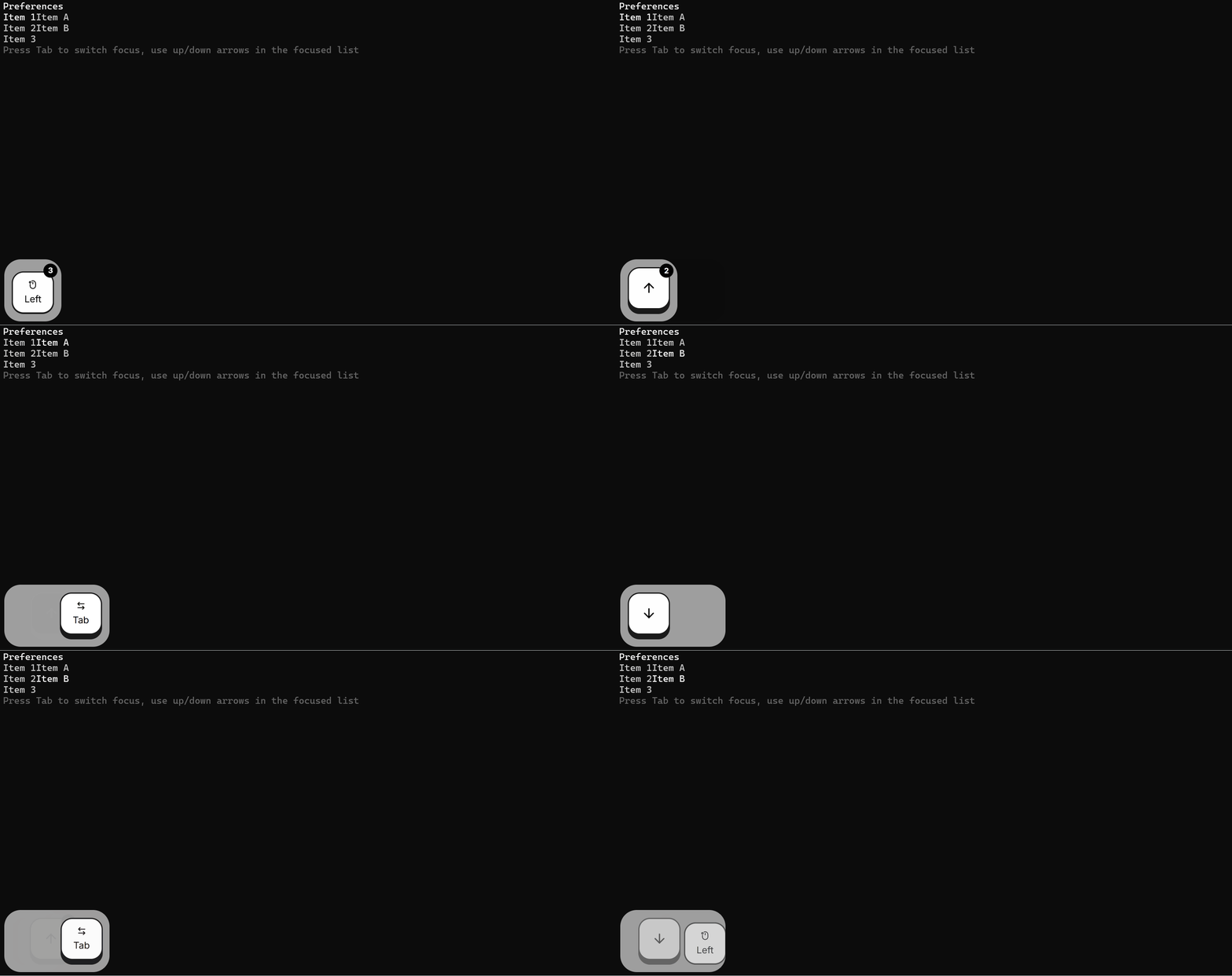
Since the first registered focus is auto-activated (see "Auto-activation" above), select-a holds focus when the screen mounts, and only its internal up/down bindings respond to keys; pressing Tab cycles between the two, and the focused list renders bold. The two components register exactly the same up/down arrows yet never conflict — they are already isolated by their own focusIds.
Best practices
When you want focus to truly disappear, call
focusUnregister— not just unbind. Unbinding only clears the bindings on a focus; the focus itself stays in the order:focusNextstill cycles through it, andfocusCurrentstill reads it. If a component is removed by conditional rendering and you want it out of the focus order, addfocusUnregisterto the cleanup function.When you need a specific initial focus, put
focusSetafter the bindings are registered. The first registered focus is auto-activated; if you want the initial focus somewhere else, register allfocusIds insideuseEffectfirst, then callfocusSet— otherwise it throws because the target isn't registered yet.Drive the UI with
useFocusState, notfocusCurrent.focusCurrentonly reads a snapshot and doesn't trigger rendering; to make highlights and cursors follow focus, subscribe withuseFocusState.Choose between
autoTaband manual Tab binding. WithautoTabenabled, the engine intercepts Tab / Shift+Tab and rotates focus automatically, so manually bindingfocusNextto the Tab key becomes pointless. When you need custom Tab behavior, disableautoTaband bind manually as shown above.Give interactive components a semantic
focusId. ThefocusIdis a component's ID in the world of focus — pick a stable, readable name (e.g.select-a,submit-btn) to makefocusSet, debugging and later maintenance easier.
Complete example
By now we can tie every part of the focus system into a fully runnable app: two select lists share the same up/down arrow keys yet never interfere thanks to their own focusIds, and Tab / Shift+Tab rotates focus between them. Save the code as a .tsx file and run npx tsx <file-name>.tsx.
import React, { useEffect, useState } from 'react';
import { Box, Text, render } from 'ink';
import {
  CurrentScreen,
  KeyboardProvider,
  ScenarioManagementProvider,
  registerComponent,
  useFocusState,
  useKeyboard,
} from 'ink-cartridge';

// A select-list component: it receives a focusId and registers its own
// key bindings onto that focus target.
function SelectInput({ focusId, items }: { focusId: string; items: string[] }) {
  const { boundKeyboard } = useKeyboard();
  const focused = useFocusState(focusId);
  const [index, setIndex] = useState(0);

  useEffect(() => {
    const unUp = boundKeyboard(['up'], () => setIndex((prev) => Math.max(0, prev - 1)), { focusId });
    const unDown = boundKeyboard(['down'], () => setIndex((prev) => Math.min(items.length - 1, prev + 1)), { focusId });

    return () => {
      unUp();
      unDown();
    };
  }, [boundKeyboard, focusId, items.length]);

  return (
    <Box flexDirection="column">
      {items.map((item, i) => (
        <Text key={item} bold={focused && i === index}>{item}</Text>
      ))}
    </Box>
  );
}

function Menu() {
  const { boundKeyboard, focusNext, focusPrev } = useKeyboard();

  useEffect(() => {
    const unTab = boundKeyboard(['tab'], () => focusNext());
    const unShiftTab = boundKeyboard(['shift+tab'], () => focusPrev());

    return () => {
      unTab();
      unShiftTab();
    };
  }, [boundKeyboard, focusNext, focusPrev]);

  return (
     <Box flexDirection="column">
      <Box flexDirection="row">
        <Text bold>Preferences</Text>
      </Box>
      <Box flexDirection="row">
        <SelectInput focusId="select-a" items={['Item 1', 'Item 2', 'Item 3']} />
        <SelectInput focusId="select-b" items={['Item A', 'Item B']} />
      </Box>
      <Text dimColor>Press Tab to switch focus, use up/down arrows in the focused list</Text>
    </Box>
  );
}

// Register Menu as the root screen
registerComponent(Menu, {});

// App entry: KeyboardProvider must be nested inside ScenarioManagementProvider
render(
  <ScenarioManagementProvider defaultScreen={Menu} fullScreen>
    <KeyboardProvider>
      <CurrentScreen />
    </KeyboardProvider>
  </ScenarioManagementProvider>
);
Result: