
Quick Start
Introduction
ink-cartridge aims to enhance React Ink rather than replace it, significantly improving the interactive experience of Ink apps. It imposes almost no constraints on your business code and is not an all-in-one framework — every capability is yours to compose freely.
Installation
Before diving into the individual APIs, there are a couple of prerequisites to know.
First, ink-cartridge lives in the Node.js ecosystem, so you install it into your project via npm:
bash
npm install ink-cartridgeRequirements: ink-cartridge depends on
reactandinkviapeerDependencies, so make sure they're installed in your project.
Usage
Once installed, you have access to ink-cartridge's full capabilities. Here's a short example to get a first feel for it.
A minimal app
tsx
import React, { useEffect } from 'react';
import { Box, Text, render } from 'ink';
import {
  CurrentScreen,
  KeyboardProvider,
  ScenarioManagementProvider,
  registerComponent,
  useKeyboard,
  useScreenSystem,
} from 'ink-cartridge';

function Home() {
  const { skip } = useScreenSystem();
  const { boundKeyboard } = useKeyboard();

  useEffect(() => {
    // Press Enter to go to Detail
    const enter = boundKeyboard(['return'], () => skip(Detail));
    return () => enter();
  }, [boundKeyboard, skip]);

  return (
    <Box flexDirection="column">
      <Text bold>🏠 Home</Text>
      <Text>Press Enter to open Detail</Text>
    </Box>
  );
}
registerComponent(Home);

function Detail() {
  const { back } = useScreenSystem();
  const { boundKeyboard } = useKeyboard();

  useEffect(() => {
    // Press Esc to go back
    const esc = boundKeyboard(['escape'], () => back());
    return () => esc();
  }, [boundKeyboard, back]);

  return <Text>📄 Detail — press Esc to go back</Text>;
}
registerComponent(Detail, {}, { parent: Home });

render(
  <ScenarioManagementProvider defaultScreen={Home} fullScreen>
    <KeyboardProvider>
      <CurrentScreen />
    </KeyboardProvider>
  </ScenarioManagementProvider>
);
Result:
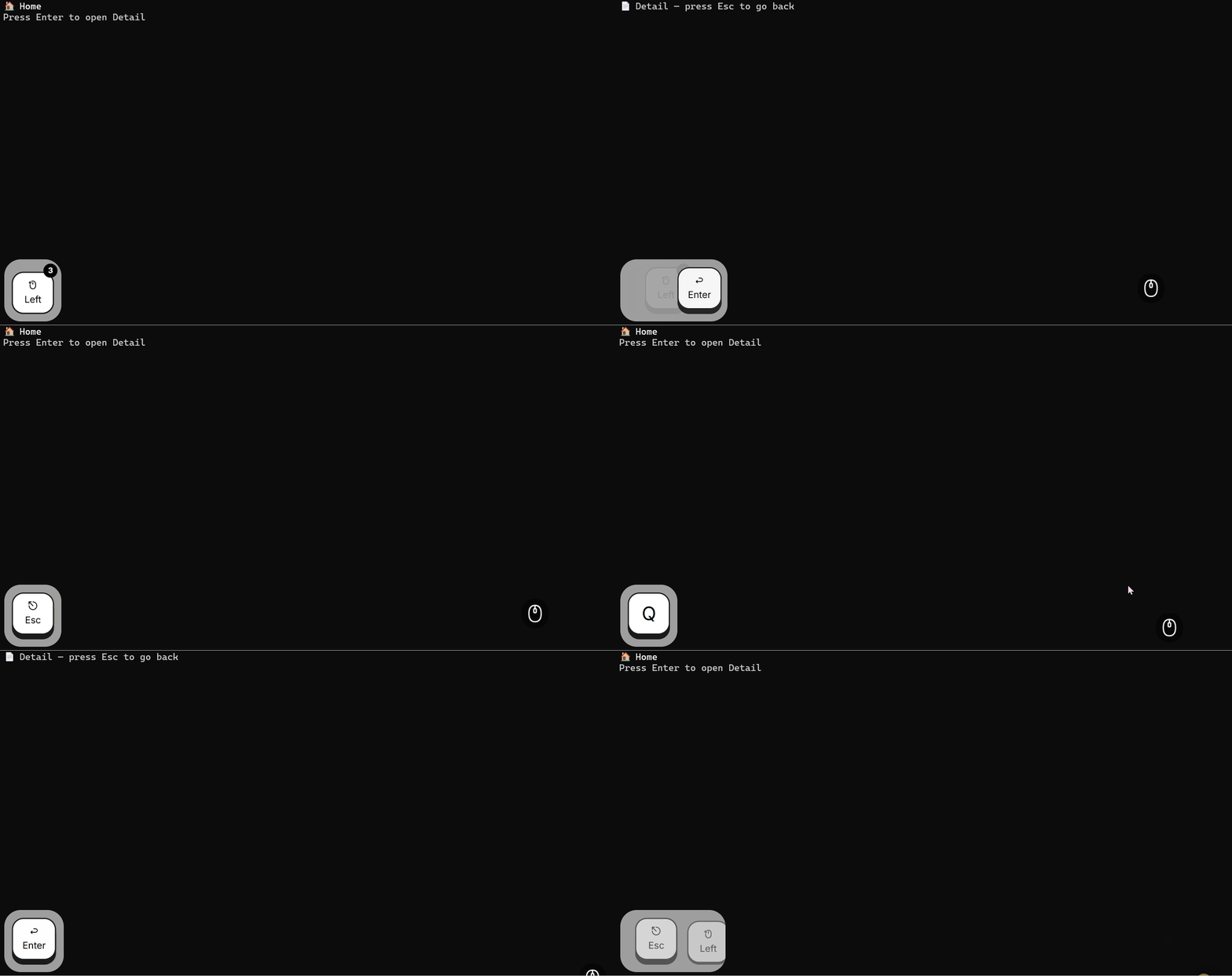
What just happened
ScenarioManagementProviderwraps the whole app and drives the screen system & routing;defaultScreen={Home}sets the first screen,fullScreenmakes Home fill the terminal.- Any React component becomes a "screen" via
registerComponent;{ parent: Home }attaches it to the screen tree as a child of Home. useScreenSystem()provides routing methods:skipnavigates down,backreturns to the previous screen.useKeyboard()'sboundKeyboardbinds keys for the current screen — Enter opens Detail, Esc returns, and the binding only applies to the active screen.KeyboardProvidermust be nested insideScenarioManagementProvider, otherwise the keyboard system silently breaks.CurrentScreenrenders the active screen.
Tip: In Ink, the Enter key is
'return', not'enter'.